Restaurant kitchen display
Keep every order moving to the right kitchen station.
LiftedPOS brings paid sales, pre-payment fires, and accepted QR work into an active production board with configured station views, visible ticket state, whole-ticket handoffs, and manager recovery.
From order to handoff
Keep the kitchen looking at live work—not paper tickets and shouted updates.
LiftedPOS connects the restaurant sale to a visible production rail. When included in scoped setup, we help map the real menu, stations, employee access, kitchen displays, order sources, and expo ownership, then rehearse representative orders before service.
Route the real menu
Assign items to the stations that own them, with a Kitchen fallback for anything not yet assigned.
See the active queue
New, In Progress, and Ready group current work while elapsed-time cues and optional sound help staff notice what needs attention.
Own the handoff
Whole-ticket actions keep the production team and expo aligned on when work actually moves forward.
Rehearse before service
Test paid, pre-payment, and accepted QR examples against the actual menu, views, roles, and manager procedure.
Bring representative menu items, modifiers, courses, stations, devices, table and counter orders, intended online sources, and the team’s handoff language.
The operating rule
Fire deliberately. Bump the whole ticket. Read the rail before recall.
The LiftedPOS kitchen workflow combines paid-sale tickets with pre-payment fires and accepted QR work. They share an active board, but they do not share the same terminal state or recovery controls. A KDS state does not prove payment.
KDS readiness controls
Establish access, station, sound, and fire policy before service.
Use a restaurant or hybrid tenant with the KITCHEN module enabled. Reading the board requires view_kitchen; changing a paid or pending ticket requires manage_kitchen. Test with the same role and browser the shift will use.
Open Kitchen with the intended staff role. Confirm the board loads, then confirm the role can or cannot bump according to policy.
Open the approved Grill, Bar, Kitchen, expo, or all-work view configured for that display and shift role.
Confirm elapsed-time treatment and optional sound, then make the visible ticket state and team handoff procedure the operating control.
Name who can fire before payment, when a course is released, and who verifies that the ticket actually moved. Fire once: each press creates another pending ticket.
Operating model
Two ticket rails meet on one active board.
The screen groups active work as New, In Progress, and Ready, oldest first. The terminal state depends on the record that supplied the ticket.
new → in progress → ready → served
Manual fires can send the current cart or course before payment. Accepted QR orders can enter the same forward-only rail. Staff advance the work as each physical handoff becomes true.
- Fire the whole cart or selected course once and confirm it appears before firing again.
- Use the fields visible on the active ticket to verify identity, seat, course, table or order type, time, and handoff.
- Confirm completed work in its source record and reconcile any unresolved ticket through the manager procedure.
new → in progress → ready → completed
A completed POS sale can appear as an active paid-sale ticket. Eligible active paid tickets can move one step backward with Recall before completion so the kitchen can correct the current handoff.
- Use the visible ticket identity, item, quantity, seat, and course context to confirm the work.
- Bump the whole ticket through the active states only when the physical handoff is true.
- Confirm completed work in the transaction record and route any duplicate or unresolved ticket through the manager procedure.
Station routing setup
Put the right items in front of the right production team.
LiftedPOS uses each product’s configured station to shape station views. We help map the real menu, screen addresses, visible work, and bump responsibility before service.
Assign the station
Give each menu item the production station that owns it. Anything not yet assigned returns to the Kitchen fallback for review.
Open the team’s board
Configure the Grill, Bar, Kitchen, expo, or all-work view each display and shift role needs.
Confirm the intended work
Rehearse representative orders and verify that every kitchen view shows the menu items, location, and order sources included in the approved design.
Own the whole ticket
Station views coordinate production while the ticket keeps one shared state. Define which employee owns each whole-ticket action.
| Check | Test input | Expected screen evidence | Stop condition |
|---|---|---|---|
| Configured station | One Grill item and one Bar item | Each approved view shows the item assigned to that production team | Wrong or missing item—review the menu map |
| Fallback | One product without a resolved station | Item appears on Kitchen | Do not invent a new station name in the shift |
| All-work view | Open the approved all-work display | All intended active ticket items remain visible | Use the current ticket identity before acting |
| Whole-ticket action | One ticket with two station items | One bump changes the shared ticket state | Train shared-state expo ownership |
| Current mapping | Change product routing only during controlled setup | Active display follows current mapping | Do not change mapping during service without a retest |
Station mapping is verified during rollout. We retest the real menu, station names, permissions, display addresses, location design, order sources, and representative orders with you before service.
See the kitchen display
See the live board your kitchen team will run.
This seeded restaurant view shows the active production layout, visible ticket identity, elapsed-time cues, and whole-ticket actions without exposing a customer account.
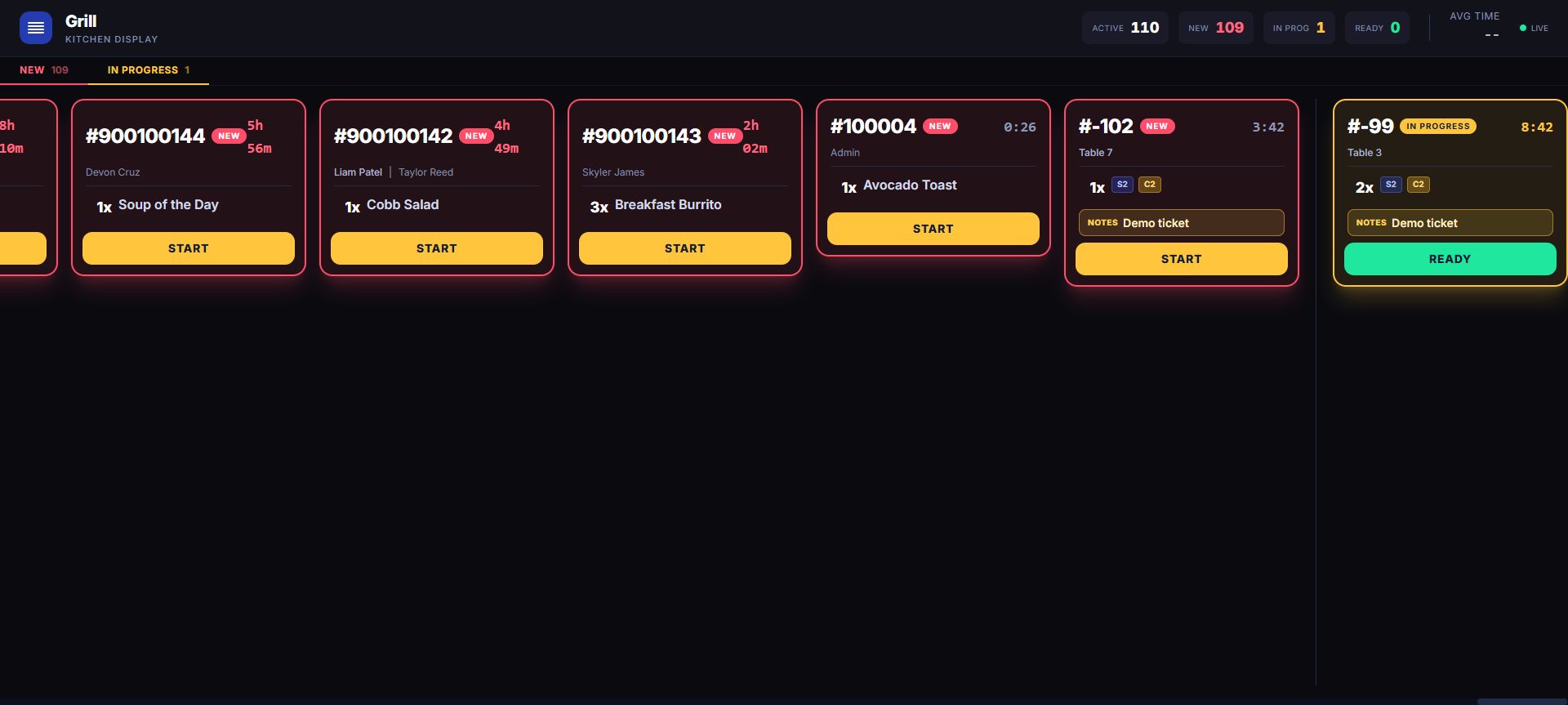
Order number, state, elapsed time, customer or cashier context on paid work, and table or order type where present.
Use the fields visible on the active ticket to confirm identity, quantity, item, seat, course, and any handoff notes before moving the work.
Elapsed-time treatment and optional browser sound help the team notice new or aging work. The visible ticket state and restaurant procedure remain the operating record.
Moving paid work to Ready can create an internal LiftedPOS notification; the restaurant still owns the guest-handoff procedure.
Troubleshooting tree
Start with ticket identity, then rail, station, access, and refreshed state.
A missing card and a failed state change have different causes. Use the shortest evidence path instead of repeatedly clicking Fire or Bump.
Confirm it was created.
For pre-payment work, verify Fire was used once. For a paid sale, verify checkout completed. For QR work, verify the order was accepted. Then open the unfiltered board before blaming station routing.
Treat Fire as a snapshot.
Confirm the fired ticket appears before firing again, and escalate any incorrect fire through the manager procedure.
Confirm the product route.
Compare the screen’s station address with the station assigned to the product. Blank or unmatched values return to the Kitchen view; correct the menu mapping and refresh the display.
Confirm access and state.
Verify the employee has kitchen-management access, refresh, and confirm the visible ticket state before continuing.
Identify the rail and active state.
Recall is shown for eligible active positive-ID paid tickets. Pre-payment and accepted QR tickets are forward-only, and completed work is no longer on the active board.
Check the approved kitchen design.
Confirm that the kitchen view matches the merchant’s approved location, station, and order-source design before service.
Keep the visual queue primary.
Confirm the display’s audio permission, then continue using the visible ticket state and restaurant handoff procedure even when optional sound is unavailable.
Follow the restaurant’s escalation.
Use the visible elapsed time to recognize aging work and follow the manager’s named attention and recovery procedure.
Ten minutes before service
Put every kitchen screen through a real order.
Run this on every display pattern and role included in the restaurant rollout. Record the ticket number, station URL, operator, expected state, observed state, and owner for any failure.
| Minute | Scenario | Expected evidence | Pass gate |
|---|---|---|---|
| 00–01 | Open Kitchen with service role | Board loads with view_kitchen; action rights match manage_kitchen | Access is correct before orders enter |
| 01–03 | Fire one cart or course before payment | The new pre-payment ticket shows enough visible context to confirm identity and handoff | Fire only once; the source record and active ticket agree |
| 03–04 | Open Grill, Kitchen, and all views | Configured station views and fallback match the approved menu plan | Every seeded item appears where expected |
| 04–06 | Bump pre-payment work | New → In Progress → Ready, forward-only | Each refreshed state matches the physical handoff |
| 06–08 | Complete the safely simulated sale after a pending fire | The paid-sale ticket enters New and the team reconciles the earlier fire through the manager procedure | No duplicate or unresolved active work remains; payment evidence is separate |
| 08–09 | Recall an eligible active paid ticket | Ready returns to In Progress or In Progress returns to New | Recall is visible only where the rail supports it |
| 09–10 | Test refresh, optional sound, and aged-ticket policy | Visible state remains current and an escalation owner is named | Staff can operate without relying on audio |
Restaurant KDS shift runbook
Use the board as a controlled handoff.
- OPENLoad the approved station view, confirm role access, interact once for optional sound, and check the active kitchen board.
- FIRERelease the whole cart or selected course once. Treat the fired ticket as a snapshot and confirm it appears before continuing.
- READUse the fields visible on the active ticket and its source record to confirm identity and handoff.
- BUMPAdvance the whole ticket only when the physical handoff is true; refresh and confirm the visible state.
- CHECKOUTConfirm the paid-sale ticket in New and reconcile the earlier fire through the manager procedure.
- RECALLUse one-step Recall only on eligible active paid-sale work; forward-only rails continue forward.
- ESCALATEFollow the restaurant’s named attention and recovery policy for aging work.
- CLOSEReconcile active work, duplicate fires, unresolved tickets, station changes, access failures, and state disagreement.
Restaurant rollout
Price the stations clearly, then build the kitchen setup with us.
LiftedPOS software is $100/month for the first station and $50/month for each additional station. A standard station is $499.99 to buy or $39.99/month to lease. Cancel anytime—there is no long-term software contract. Leased equipment must be returned after cancellation or billed at full purchase price.
Plan my restaurant setupTenant access uses {company-prefix}.liftedpos.com/login. During scoped setup, we help map and validate the real menu, station views, permissions, kitchen displays, network, printers, mounts, intended order sources, and expo ownership. Device choice, printer routing, guest notification, processor behavior, and any service commitment are confirmed in the written rollout.